
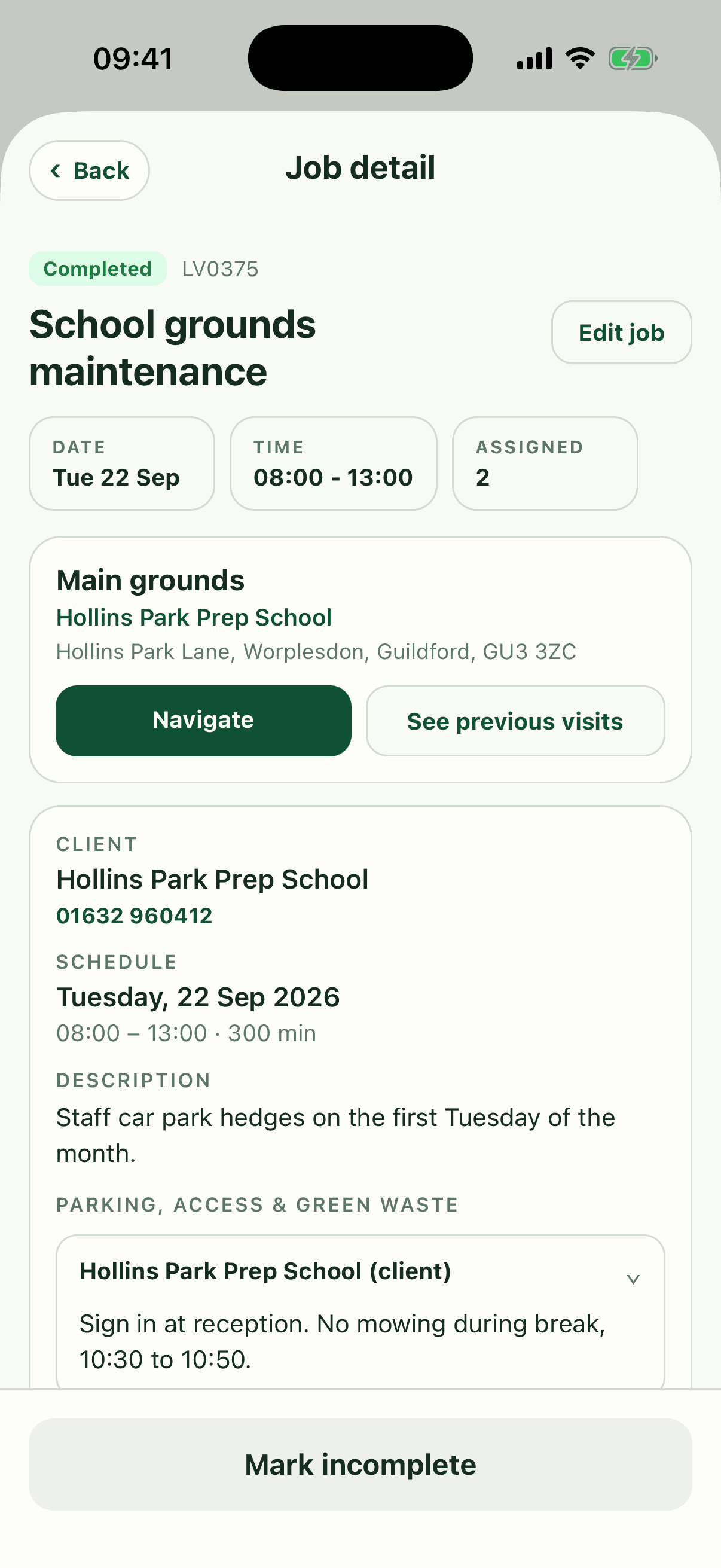
Schedule shows the jobs you're on, day by day, and each job has everything you need on site: where it is, what to do, and what to know before you go.
Everything you record on a job (your time, ticks, photos, spraying and notes) goes straight back to the office. With no signal, the app keeps it and sends it later.
Your schedule
Schedule opens on today, with each job's time (or Any time), client and address. Use the arrows to change day and Today to jump back. Pull down to refresh.
When there are several Any time jobs, they're numbered in the order the office wants them done. My jobs shows only yours. If you belong to a division, a button beside it shows the whole division's jobs. The Map tab shows the same day as stops, and you can pick any day up to a year ahead.
A job's screen
The top of a job shows When, Staff, Site and Client. Navigate opens the address in your maps app, and Previous visits lists earlier visits to that client, each of which you can open.
Below that are the description, any Checklist from the office, and the works. The client's phone number only shows, and the client and site open, if your business allows it. If your role can change jobs, Edit at the top lets you update the details.
Before you go
The amber Before you go block is the part to read before you set off. It only shows when there's something in it.
- From the last visit: notes left for this visit, with who left them and when.
- Parking, access and green waste: the access notes for the client and site.
- Gate code: the code to get in, if there is one.
- Health & safety: the key risks from the client's latest site risk assessment. Tap to open it.
- Client notes: anything else the office wants you to know about the client. Tap to open it.
Starting and finishing
Tap Start job when you arrive. It records your time on the job, and Finish job and Mark incomplete then appear. If others are on the job too, each of you starts and finishes your own time. Starting a job doesn't clock you in for the day, so clock in on Timesheets as well.
Finish job lets you check the Work done and add a note. If you can't finish, perhaps because of the weather, tap Mark incomplete and say why, so the office can rebook it.
Some businesses complete jobs automatically once their time has passed. Then there's no Start job, and you only tap Mark incomplete for a job that didn't happen.
Works, photos and spraying
Tick off the Works to be carried out as you go. Each tick saves straight away, and the count shows how many are done.
For photos, choose Before, After or General, tap Add photo, then take one or pick one from your library. They also go into Gallery, where Upload photo adds ones that aren't from a job.
If you spray, tap a spraying work, or Show beside Spraying, and tap what you sprayed. You can add a note first. It's saved straight away, and you can still add it after Finish job if you forgot.
Notes
Tap Add note to leave a note on the job. Before you save it, choose who it's for.
- Office follow-up needed: sends it to the office's notifications, for something they need to act on.
- Show on next visit: shows it in Before you go for whoever goes next time.
- Neither: it stays on this job as a record.
Adding a job
If your business lets your role add jobs, New job shows on Schedule and under More. Choose the client and site, give it a title, a time or Any time, a duration, and who's on it, then tap Create job. Staff can't add jobs unless the business turns this on.
Working without signal
With no signal, starting and finishing jobs, ticks, photos, spraying, notes and new jobs are saved on your phone and show as Queued. A banner shows how many changes are waiting, and they send on their own when you're back online.
The app keeps the jobs it has already loaded, so open your day while you have signal. Signing in and signing off documents always need signal.
Key workflows
Get ready for a job
App › Schedule › Job
- Tap the job on Schedule.
- Read Before you go.
- Tap Navigate to get directions.
Do the job
App › Job
- Tap Start job when you arrive.
- Tick the Works to be carried out as you go.
- Add Before and After photos with Add photo.
- Tap Finish job, check the Work done and tap Finish job again.
Mark a job incomplete
App › Job
- Tap Mark incomplete.
- Say what couldn't be done and why.
- Tap Mark incomplete to send it.
Questions
Why can't I see Start job?
Either the job is finished or cancelled, or your business completes jobs automatically. Then you only need Mark incomplete when a job didn't happen.
Why can't I tick the works?
Works can be ticked while the job is open, so tap Start job first.
Can I see the client's phone number?
Only if your business allows staff to see client contact details. If it doesn't, ask the office to contact the client.
Something says it couldn't sync. What do I do?
The app shows which change failed. Tap Retry sync once you have signal, or tell the office what it was before you discard it.