
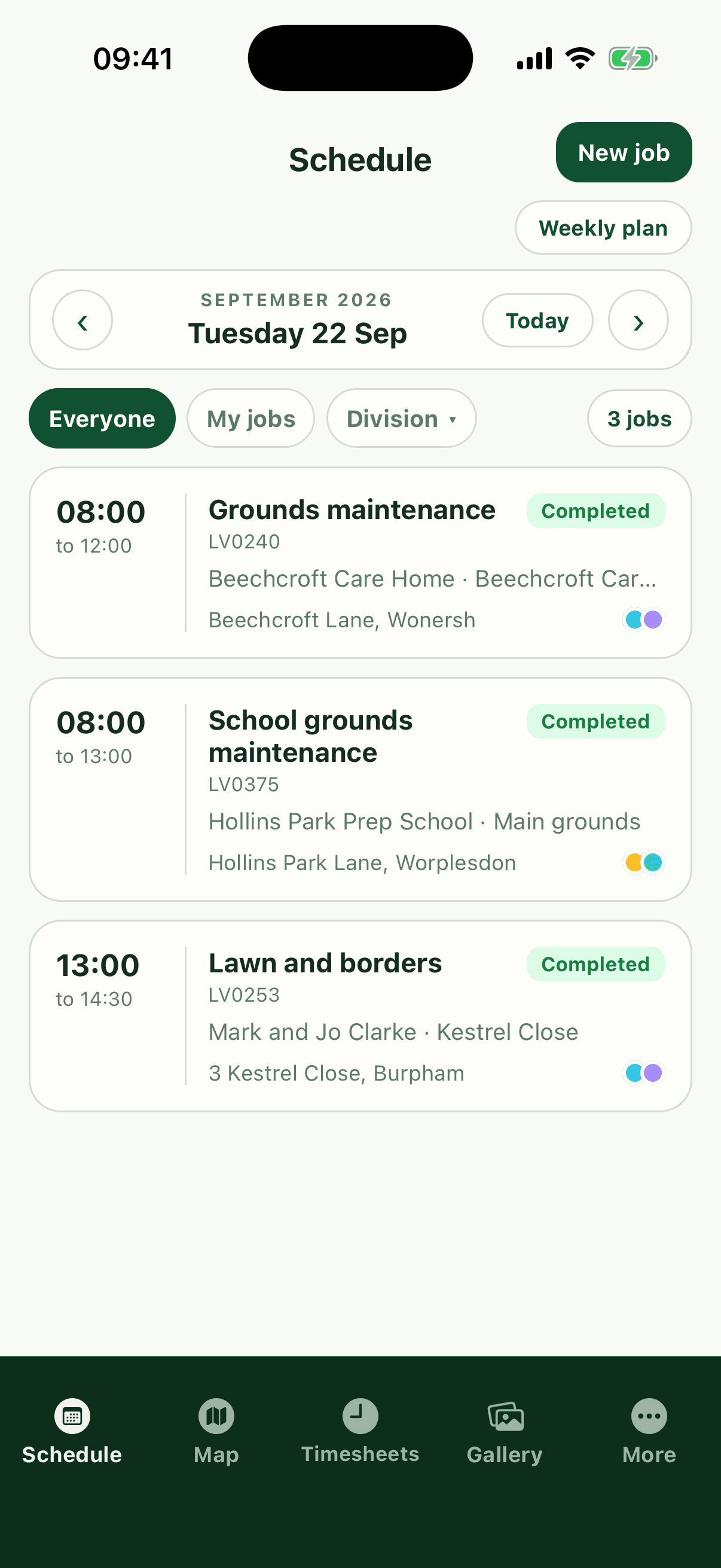
Fieldfare HQ is the app for your working day: your jobs, your hours and the record of the work you do. Your business adds you, so there's no account to create.
What you see in the app depends on your role. Your business decides what staff can see, so the app may look a little different from a colleague's.
Step by step
Sign in for the first time
App › Sign in
- Open the app and tap Sign in with email.
- Enter your email and tap Continue.
- Type the code from your email and tap Sign in.
- Set a password, or tap Skip for now, I’ll use email codes.
Set or change your password
App › More › Profile
- Open More and tap your name.
- Tap Change password.
- Enter it twice and tap Update password.
How it works
Getting the app
On an iPhone, get Fieldfare HQ from the App Store. On Android, get it from Google Play. The email inviting you to the business has links to both.
Everyone uses the same app, whether you're staff, a subcontractor or the owner.
Signing in
Sign in with the email your business added you with. Tap Sign in with email, enter it and tap Continue. Fieldfare emails you a 6-digit code: type it in and tap Sign in. If it doesn't arrive, check your junk folder or tap Resend code.
Sign in with Google, and Sign in with Apple on an iPhone, work too, as long as they use the same email. You need signal to sign in. After that the app keeps working without it.
Passwords are optional
After your first sign-in, the app offers to set a password (at least 8 characters). Set one and the app asks for it next time instead of sending a code. Or tap Skip for now, I’ll use email codes, and it won't ask again on that phone.
You can set or change a password later from your profile. If you forget it, tap Forgot password? Sign in with a code, or Send code to email instead on the password screen.
The tabs
The bar along the bottom holds the things you use most. A tab is missing if your business hasn't given your role access to it.
- Schedule: the jobs you're on, one day at a time.
- Map: the same jobs as stops on a map, with Open your route to send them all to your maps app.
- Timesheets: clock in and out, and see your hours for the week.
- To-dos: only shows as a tab if your business doesn't use timesheets on the app. Otherwise your to-dos are under More.
- Gallery: photos from jobs, clients and sites, and ones you upload yourself.
- More: everything else.
What's under More
Your name at the top opens your profile. Below it are Share links (links and QR codes to show clients, such as for leaving a review), Jobs (a searchable list of your jobs by status), To-do list, Health & safety, Team and Help and guides.
Clients and Vehicles only appear if your business has turned them on for your role.
What you can see
Out of the box, staff see what they need for their own work and not much more. Your business can change this.
- Your own jobs, plus your division's jobs if you belong to one.
- The client, site and address on your jobs, but not the client's phone number or email.
- The team list and colleagues' phone numbers (not for subcontractors).
- Health and safety documents and site risk assessments.
- Your own timesheet only.
- Prices never show on the app.
Your profile
Your profile shows your email, phone, divisions, colour on the schedule, skills (such as Driver or Spray certificates) and when you joined. Only the office can change these, so tell them if something's wrong.
From your profile you can Change password or Sign out. If you have changes that haven't synced yet, the app warns you first: they stay on the phone until you sign back in. The app doesn't send phone notifications, so things waiting for you, like Sign-off needed, show inside the app.
Questions
The app says it can't find an account for my email. What now?
Your business hasn't added that email yet, or added a different one. Ask them which email they used, or to add you.
Why does it say my account is paused?
Your business has paused you, for example over the quiet season. Ask them to unpause you, then tap Try again.
Why does it say Fieldfare is paused?
The business doesn't have a working card on its Fieldfare account. Ask the owner to sort it out.
Can I use the app on a new phone?
Yes. Install it and sign in with the same email. Anything that hadn't synced on the old phone stays on that phone.
Why can't I see the Clients list?
Your business hasn't turned on clients and sites for staff. You still see the client and site on each of your jobs.