
A contract is one price for a set of work, such as a year of grounds maintenance for £12,000. It records the client, the value, the dates it runs, the terms, and which sites and recurring jobs it covers.
Once the work is linked, Fieldfare shares the contract's value across the visits. That tells you what each visit is worth, what you planned to earn an hour, and how the contract is really doing as visits are completed.
Where contracts live
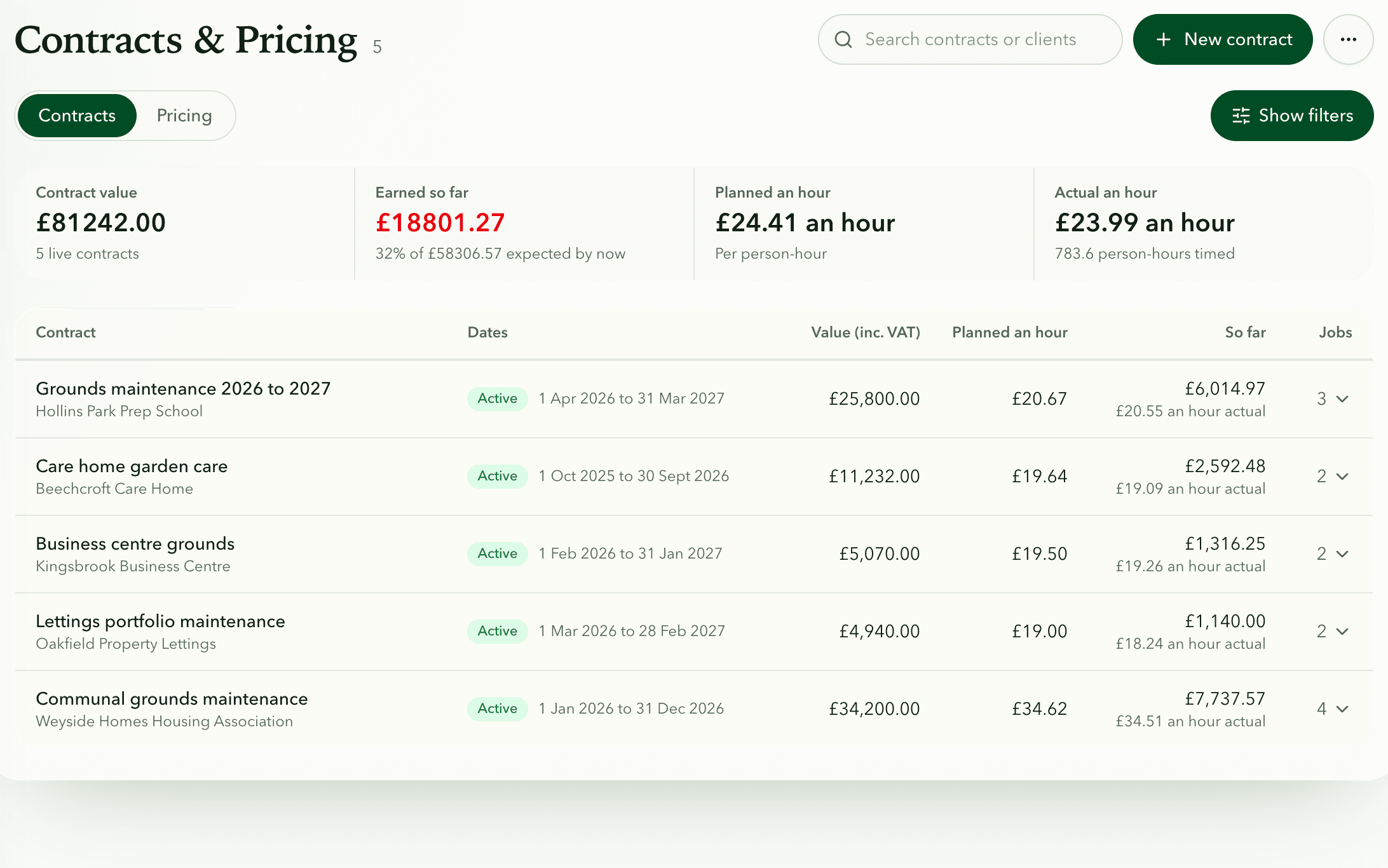
Contracts are in Financials under Contracts & Pricing, on the Contracts tab. Each client's Details tab also lists their contracts, with an Add button that starts a new one for that client.
Select a row in the list to open it out. You'll see the visits and planned hours, the recurring jobs with their share a visit, and any one-off jobs. Open contract shows the full record.
Value, VAT and what each visit is worth
The value is the whole contract price. If your business is VAT registered, you enter it including VAT, the same as your invoices, and the label says so. New businesses start as not VAT registered until it's changed in Business profile.
Fieldfare shares the value across the linked work by planned staff time, so a six-hour visit carries six times the value of a one-hour one. Work with no planned time counts as the average. That gives each visit a share and the contract a planned rate an hour.
Above the list, Contract value, Earned so far, Planned an hour and Actual an hour total your live contracts. If you've set a target rate on the Pricing tab, anything below it is marked in amber.
Dates and fee increases
Each contract can have a Start date, End date and Rollover date. Only visits between the start and end count towards it.
Active contracts show in Notifications 30 days before their end or rollover date, so renewals don't slip by.
Last fee increase and Fee increase (%) are a record of when you last put the price up and by how much. Fieldfare doesn't change the value for you, so update the value when the new price starts.
Status
You set the Status when you edit a contract. Fieldfare never changes it for you, even after the end date.
- Active: the contract is running. It counts in the figures, its recurring jobs take their share, and it can be picked as the price for a job.
- Paused: on hold. It still counts and still prices its jobs, but it isn't offered for new jobs and gets no end or rollover reminders.
- Ended: it ran its course. It drops out of the figures and Reporting, and its recurring jobs need a new price.
- Cancelled: it stopped early. It's treated the same as ended, and the record stays for reference.
Covered sites
Choosing All sites on a new contract covers the client's sites at that moment. Sites you add to the client later aren't covered until you add them under Covered sites on the contract.
Recurring and one-off jobs
Link the recurring jobs the contract pays for, either when you create it or from the contract's row in the list. A recurring job can only be linked to a contract for the same client.
One-off jobs join a contract from the Pricing tab, by choosing the contract as their price. Each one is then Included, meaning it's part of the contract price, or Extra, meaning it's charged on top at its own price.
Giving a recurring job its own price or a price template takes it off its contract.
Documents, notes and who can see contracts
Attach the signed copy under Contract document. It can be a PDF, image or office file up to 10MB. Use Inclusions, Exclusions, Billing notes, Operational notes and Contract terms for the detail.
Staff and subcontractors can never see contracts. Admins can, depending on their permissions: the Contracts permission covers the client's record, and Contracts & Pricing needs Billing rates set to Edit.
Key workflows
Add a contract
Financials › Contracts & Pricing › New contract
- Select New contract.
- Choose the Client, type the Contract name and the value.
- Add the dates, then pick the Covered sites and Recurring jobs covered by this contract.
- Add the terms and the signed copy with Add document.
- Select Create contract.
Link jobs to a contract
Financials › Contracts & Pricing › Contracts
- Select the contract's row to open it out.
- Choose a job from Link a recurring job, or select the cross beside one to unlink it.
- For each one-off job, choose Included or Extra.
End or pause a contract
Contracts & Pricing › Open contract › Edit
- Open the contract and select Edit.
- Set the Status to Paused, Ended or Cancelled.
- Select Save changes.
Questions
Can I delete a contract?
No. Set its status to Ended or Cancelled instead. It leaves the figures but the record and document stay.
Why can't I find an old contract in the list?
The list shows active contracts unless you filter. Open the filters and choose Any status, Paused, Ended or Cancelled.
Can staff see what a contract is worth?
No. Staff and subcontractors can't be given access to contracts.
Does a contract create jobs for me?
No. Recurring jobs make the visits. The contract records the price and shares it across the visits you link.